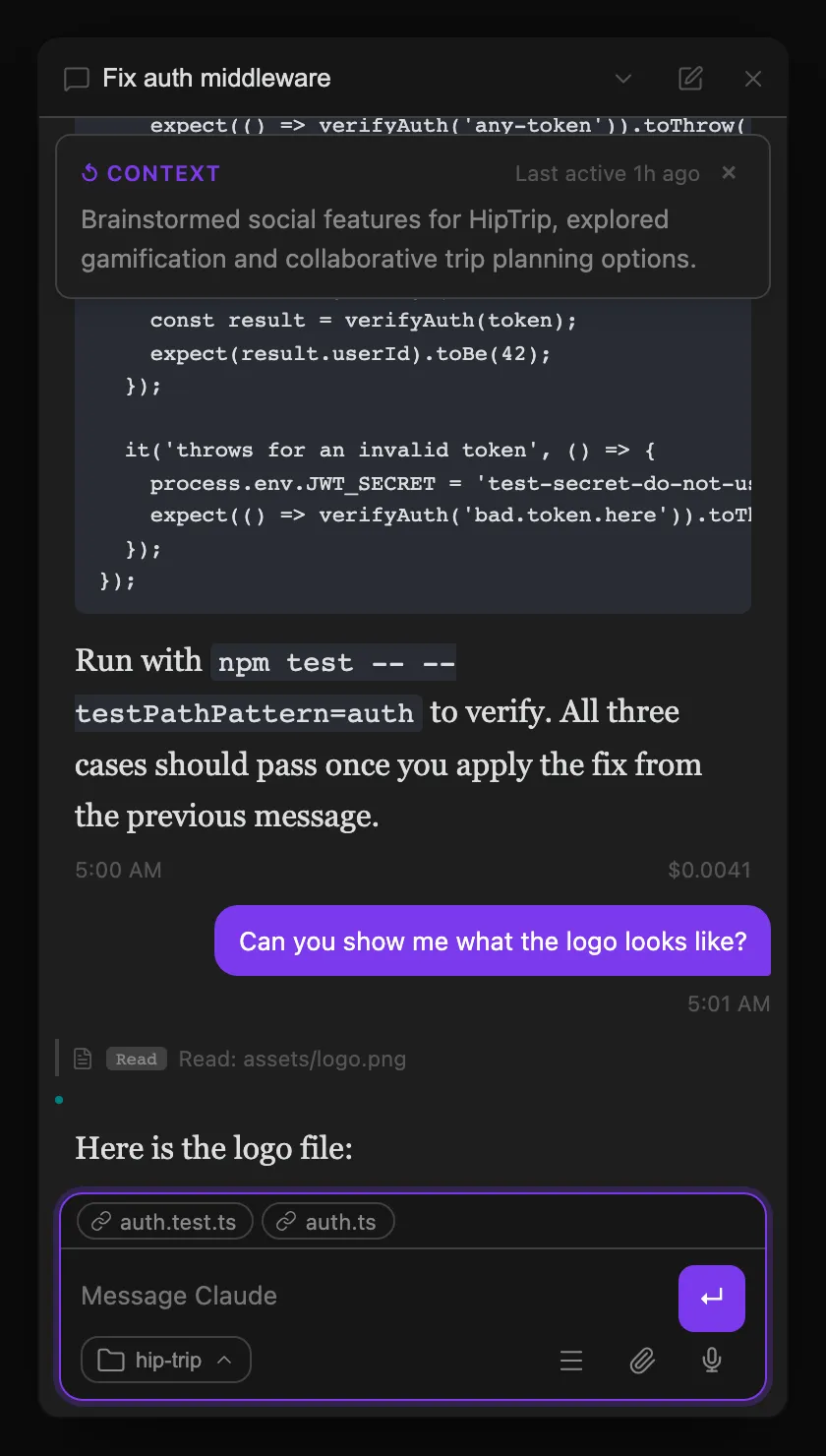
Sending messages
- Enter — send message
- Shift+Enter — newline
/— opens slash command autocomplete- Escape — cancel the running session; the sent message is restored to the input box so you can edit and re-send
Collapsible input panels. All three message-input panels (Chat, Agents List sidebar, and Agent Board dispatch) collapse to a minimal bar at rest — just the textarea and send button. Hover over the panel or click into the textarea to expand secondary controls (attach, mic, model picker, more menu, working-directory chip) with a smooth animation. The panel border softens when collapsed so it reads as a quiet background element rather than competing for attention.
On wide conversation panes, the complete timeline and composer are centered together in a readable-width column. Narrow panes remain full width so the available space is not reduced further.
Opening note links
Assistant responses can link to vault notes with [[wikilinks]] or ordinary [label](path.md) Markdown links. Both formats open the target note in classic and conversation-first placement. OS-absolute paths also resolve when they point inside the vault, including heading and block anchors. An absolute path outside the vault remains inert and shows a notice instead of opening or creating anything.
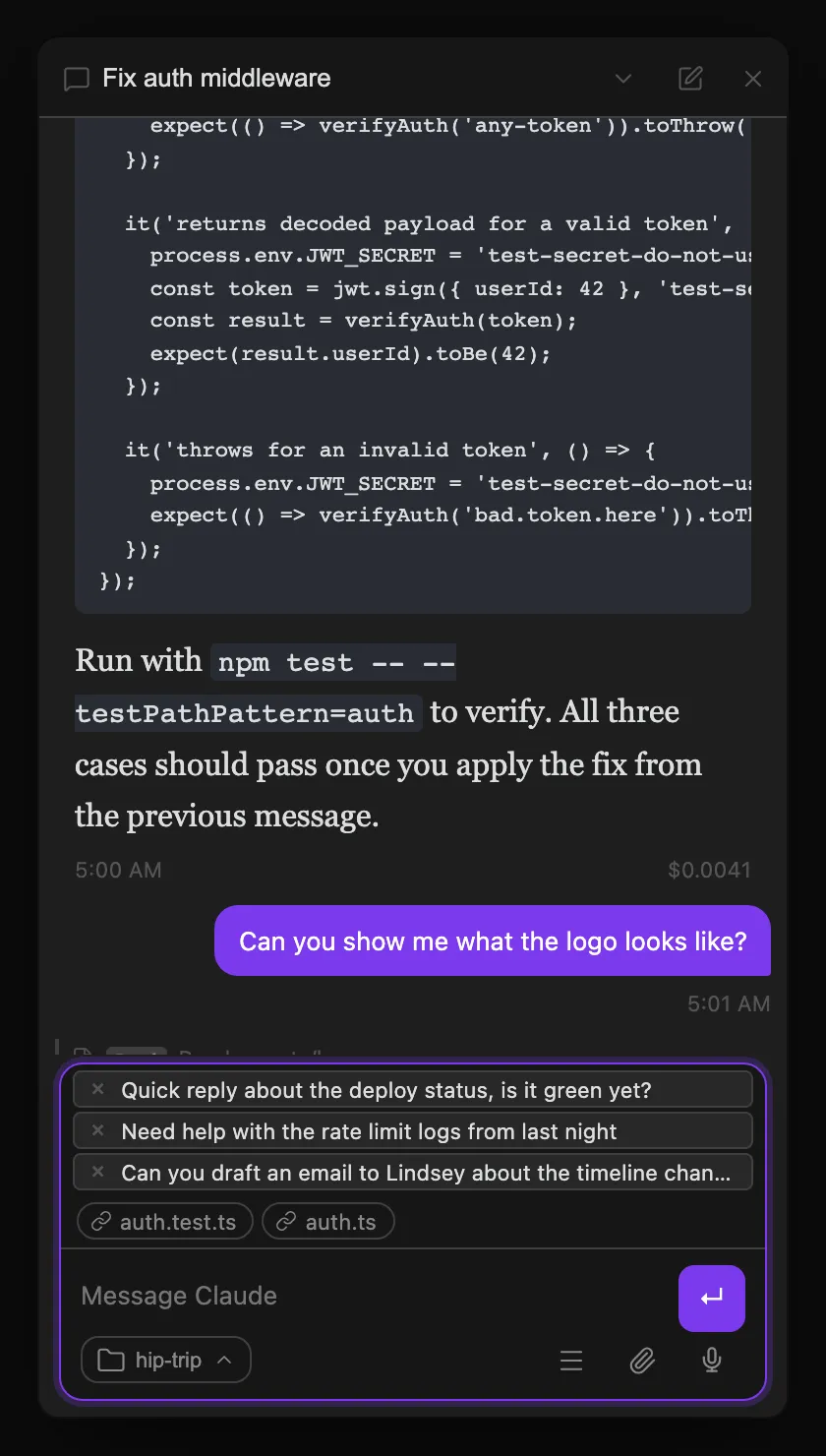
Message queue
If you send a message while Claude is already processing, it goes into a queue — displayed as stacked, removable rows above the composer. Each row shows a preview of the queued message and an × button to discard it. Click any row to pull it back into the input box for editing (an inline confirm prompt prevents you from accidentally discarding your current draft). The queue drains automatically as Claude finishes each turn. Queued messages survive thread switches and plugin reloads.
Task checklist
Claude’s TodoWrite / TaskCreate tools and Codex’s update_plan tool render the same live task checklist above the composer. It updates as the agent moves items between pending, in-progress, and completed states, so you can follow a multi-step task without interrupting the thread.
Activity indicator
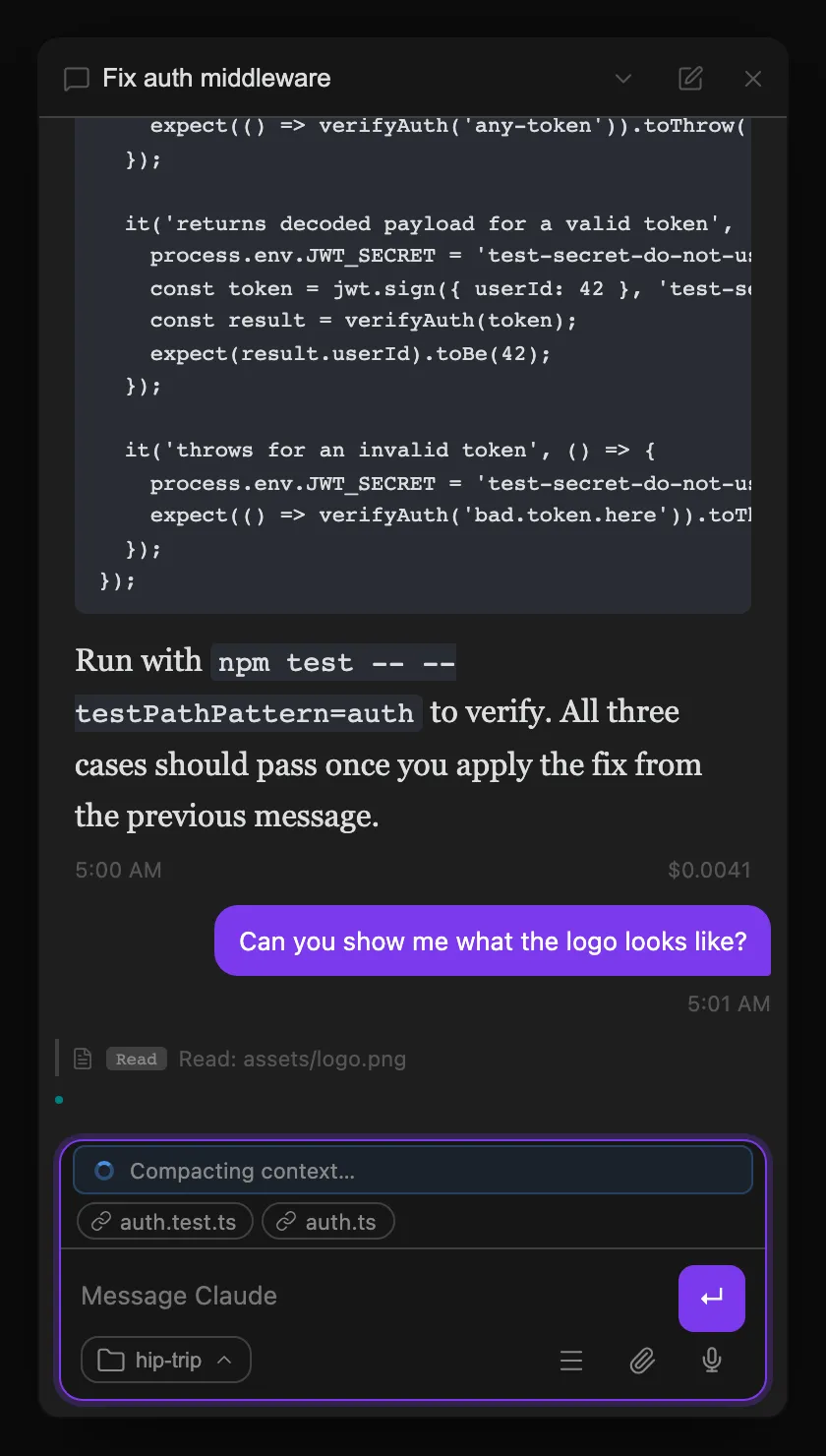
While Claude is processing, a typed status card appears above the input area showing what’s happening:
- Active work — a pulsing spinner with a short label (e.g. “Compacting context…” during automatic compaction, “Retrying API call…” on transient errors). The card disappears as soon as the operation completes.
- Rate limit — if the API returns a rate limit response before rejecting the turn outright, a card shows in warning or error style depending on whether the request was allowed to proceed anyway.
- Model escalation tip — when a turn is routed to the escalation model, a brief tooltip pops up from the model button rather than reshuffling the layout. See Model escalation for the full behavior.
Tool call grouping
Consecutive tool calls of the same kind — a run of file reads, or a string of edits — collapse into a single expandable group instead of a long scroll of individual pills. This happens live as the turn runs, not just after it settles, so a long agentic run never grows an unbounded wall of pills while Claude is still working. The in-progress group shows a “still running” pulse, a group you expand mid-turn stays expanded as more calls arrive, and a group containing a failed call auto-expands and stays flagged so errors are never hidden.
Two refinements keep even a busy, fast-changing turn (reads, edits, and planning calls interleaved) from reading as a wall of short, choppy groups:
- Smoothing — a short interruption of a different kind (for example, a single
TaskUpdatebetween two runs of file reads) is folded back into the group on either side instead of breaking it into three separate short entries. - A second collapsible tier — if the list is still long after smoothing, it collapses one level further into a single “N tool calls, M steps” wrapper. While the turn is in progress, that wrapper’s header live-updates to show the icon and name of whichever tool is currently running, so a long collapsed run doesn’t read as frozen. It auto-expands through both levels if any call anywhere inside it fails, the same way a single group does.
Both refinements are available on desktop; mobile gets the smoothing pass only.
Errors and auto-retry
Two failure modes are recovered automatically, shown as a transient amber “reconnecting” notice in the conversation rather than a hard error:
- Transport hiccup — the underlying
claudeCLI transport is spuriously force-closed mid-tool-call. The plugin auto-fires one follow-up turn so Claude can verify whether the interrupted action actually succeeded before treating it as a failure. - Rate-limited turn — the API rejects a turn outright with a rate-limit or overload error before processing it at all. The plugin silently retries the exact same turn after a backoff delay (up to 5 attempts, growing from ~3s to ~90s) — no duplicate message is added to the conversation, since Claude never saw the original prompt.
If a rate-limited turn exhausts all of its retries, or any other error occurs, it surfaces as a normal error card — but instead of a wall of raw stack-trace text, you get a short one-line summary with a Show technical details disclosure you can expand for the full trace.
Slash commands
Type / in the input box to see built-in context commands and your installed Claude Code skills. Navigate with arrow keys, Tab, or Enter.
Built-in commands (handled by the plugin)
| Command | What it does |
|---|---|
/model fable|opus|sonnet|haiku | Set a persistent model for this thread |
/model default | Reset thread model back to the global default |
/model | Show the current model for this thread |
/goal <text> | Set a persistent goal for this thread — injected into every turn until cleared |
/goal clear | Clear the thread’s goal (/goal alone shows the current goal) |
/loop <interval> <prompt> | Send a prompt now and re-run it on an interval (e.g. /loop 10m check CI); replaces any loop already running on this thread |
/loop stop | Stop the thread’s loop (/loop alone shows it) |
/compact | Summarize conversation history to free up context window |
/clear | Clear conversation history and start a fresh session |
/cost | Show token usage and cost for the current session |
/context | Show a per-category token usage breakdown for the active session (tools, system prompt, skills, MCP tools, conversation, etc.) |
/usage | Show cross-provider token totals, quota windows and resets, and account activity where available |
/create-pr | Ask Claude to push the branch and open a PR (gh pr create) — same action as the git diff bar’s Create PR button |
/create-pr --draft | Same, but opens a draft PR — same as the git diff bar’s Create draft PR button |
/design <brief> | Start a new design thread from Agents List/Agent Board, or create or revise a secure static UI artifact in Chat, and open it in Geode’s ArtifactView |
/escalate <prompt> | Route just this turn to the escalation model (default keyword /escalate; keyword and target model are configurable in Settings, and the row only appears here when escalation is enabled) |
Design artifacts in Geode
Use /design <brief> from the Agents List or Agent Board dispatch box to create a new native design-artifact thread, or use it in Chat to create or revise the current thread’s artifact. Threads creates a zero-install static UI artifact under .geode/artifacts/ in your vault, and the agent edits ordinary index.html, styles.css, app.js, and local asset files. The persisted artifact card keeps Open preview, Capture, and Reveal source available after the turn and after reopening the thread.
This workflow is supplied by the separate desktop-only Design for Agent Threads plugin. Install and enable it alongside Agent Threads to register /design, EnterDesignMode, and the artifact controls. If it is disabled or removed, Agent Threads does not show the command or tool; existing legacy design cards remain visible with a read-only Reveal source action, so prior work is not orphaned.
Starting in Agent Threads v0.43.0, Design is no longer built in. Download Design v0.1.0 and follow its installation instructions. The Design repository is currently private and requires access; if you need Design but cannot access it, keep Agent Threads v0.42.0 until you can obtain the companion plugin. Enable Agent Threads first, then Design. Interactive preview and screenshot capture require Geode; Obsidian reveals the artifact source instead.
Inside Chat, /design without a brief reopens the existing preview. In Agents List or Agent Board, a brief is required: bare /design shows a usage notice, preserves the draft, and creates no thread. New-thread design dispatch does not accept image or text attachments; remove them and send again. Other dispatch commands can still use attachments normally.
Agents can start this experience themselves with EnterDesignMode({ brief }). The tool creates or reuses the calling thread’s artifact, focuses the thread, opens the preview, and shows its artifact controls. It returns the source paths and design instructions to the calling agent, which continues working in the same turn. It does not start another thread or send a second message. A nonblank brief and normal write permission are required; finish Plan mode and resolve any pending plan approval first.
The result distinguishes an opened preview from a source-reveal fallback or preview failure. A saved artifact remains available for retry when its preview cannot open. On older plugin versions where the tool is unavailable, submit /design <brief> in the composer yourself; asking an agent to send that text through a generic thread-message tool does not activate the command.
New-thread setup is transactional: failure before the preview is ready removes the provisional thread and its newly allocated artifact storage. Once setup commits, a later failure to start the agent turn keeps the thread and artifact available and reports the error for retry.
There is no persistent on/off Design setting or exit command. To move on, tell the agent that the design is approved and specify the next task. The artifact remains available as a reference. /design off is interpreted as a design brief, not an exit command.
Geode’s ArtifactView provides live reload, desktop/tablet/mobile viewport controls, runtime diagnostics, and PNG capture. The preview runs in an isolated, ephemeral, Node-less guest with network, clipboard, downloads, popups, and external navigation denied. Outside Geode, Threads reveals the source instead of launching it without that sandbox.
Agents List and Agent Board dispatch behavior for /model, /goal, /loop, /design, and /escalate is summarized on Models, Goals, and Loops.
Context, cost, and usage
These commands answer three different questions:
/contextshows what currently occupies the active model context window, broken down into categories such as the system prompt, tools, skills, MCP tools, and conversation./costremains the existing harness-native session command for token usage and cost./usageopens Agent Threads’ cross-provider usage view. It shows thread or session token totals, last-turn tokens when the provider reports them, Claude cost explicitly labelled as estimated, and each available quota window with percentage used and reset time. With supported Codex-service authentication, it also shows cumulative account metrics and recent daily token activity.
Provider capabilities are not identical. Claude account activity is not available through the SDK. Claude quota windows (5-hour and 7-day) show live utilization for subscription sessions: /usage pulls the current percentages proactively from the SDK’s structured usage data, so you see them at any point in the window rather than only after a rate-limit event. API-key, Bedrock, and Vertex sessions have no plan limits, so those windows show a dash instead of a percentage. Codex can read current multi-window limits and Codex account daily/cumulative activity, but API-key-only or Bedrock authentication may not expose account activity. The view reports unavailable fields directly rather than estimating or manufacturing parity between providers.
Command pills — when you complete a built-in command (type /goal or pick one from the dropdown), it turns into a pill chip at the left of the input box. Type the arguments after it; a single Backspace at the start of the input (or clicking the pill’s ×) deletes the whole command. After a command, argument autocomplete kicks in — /model offers fable|opus|sonnet|haiku|default.
Skills — every skill available to the session appears below the built-in commands in the same / dropdown: your ~/.claude/skills/ library (invoked bare, e.g. /my-skill), skills the plugin installed into the vault (namespaced under the vault plugin, e.g. /vault:my-skill), and skills from any configured plugin source (namespaced after themselves, e.g. /my-skill:my-skill). The autocomplete shows the name you actually invoke, so what you pick is what resolves. Selecting one inserts the skill name into your message, which Claude handles via your CLAUDE.md configuration. This is the same slash-command surface the Skills Manager installs into — anything you add there shows up here automatically, with no separate registration step.
@ file mentions
Type @ anywhere in the input box to search vault files by name. A dropdown appears showing up to 20 matching files — navigate with arrow keys and press Tab or Enter to insert.
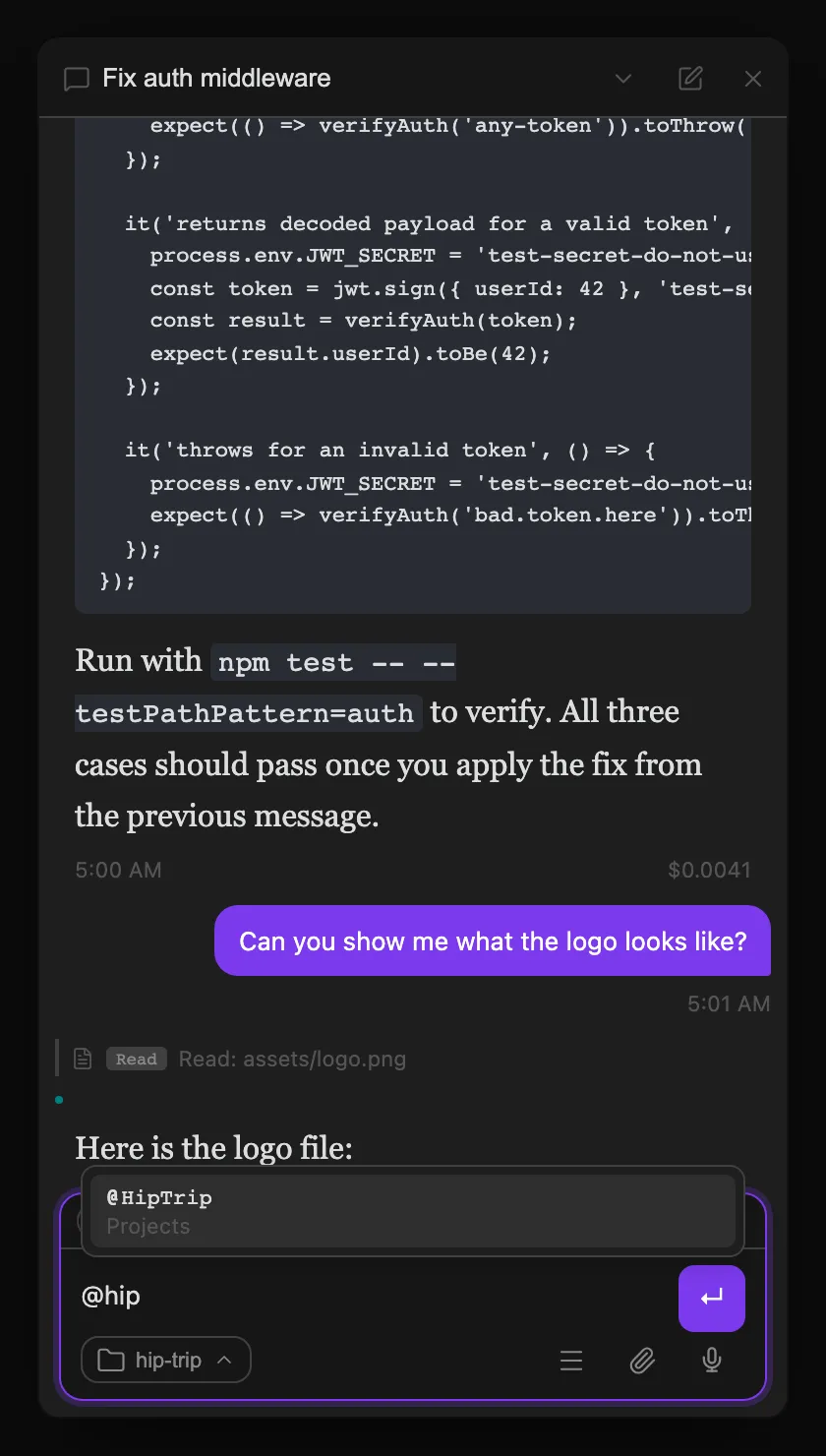
Selecting a file inserts @[[filename]] into your message. When you send the message, the plugin resolves each mention and appends the file’s full content as context for Claude — useful for asking Claude to work with a specific note, doc, or config file without copying and pasting.
Type @this (no search needed) to instantly reference the currently active file in Obsidian. It resolves to the same @[[filename]] injection at send time.
Chat about this document
You don’t have to start from the composer. Right-click a Markdown note in the file explorer — or right-click anywhere inside an open note — and choose Chat about this document. The command palette carries the same entry, chat-about-active-document, which only appears when the active file is a Markdown note.
All three entry points do the same thing: open the Agents List and seed its dispatch box with @[[note name]], focusing the box with the caret parked after the mention so you can type the actual question straight away. Nothing is sent yet — the thread is created when you submit, so this always starts a new thread rather than appending to one you already have open. At send time the mention resolves exactly like any other @ mention, inlining the note’s full content as context.
Three behaviors worth knowing:
- Markdown only — the menu item does not appear on PDFs, images, canvas files, or folders. The mention resolver only reads Markdown files, so offering it elsewhere would produce a mention that silently resolves to nothing.
- It appends rather than clobbers — a draft already in the dispatch box is preserved, and the mention is added to the end of it.
- Repeating it is harmless — triggering it twice on the same note will not inline that file twice.
Desktop only, like the plugin’s other commands.
Watch a document
Right-click a note (in the file explorer or inside the editor), or run Watch this document from the command palette, to have the currently active thread watch that note for content changes. The label flips to Stop watching this document once a watch is already active for that file and thread. If no thread is open, a notice asks you to open or start one first.
The watch belongs to whichever thread was active when you created it — only that thread gets alerted, and it keeps getting alerted even after you switch to a different note or thread. When the note’s content changes — from you, from another thread editing it, from an external sync, from anyone — the owning thread receives an injected message referencing the file with the same @[[filename]] mention syntax @ file mentions use above, so the full current content is right there in the alert. A no-op resave (saving with no actual content change) does not trigger an alert, and if several watched files change in the same burst, the owning thread gets one batched message instead of one per file. Renaming a watched file keeps the watch attached; deleting it sends one final alert and removes the watch.
Agents can do the same thing without the menu via the watch_document, unwatch_document, and list_watched_documents MCP tools — see the Agent Tools Reference. Manage every active watch — see who owns each one and unwatch from outside the file itself — under Settings → Scheduled → Watched documents (see Scheduled Tasks).
Context compaction
When the context window fills up, Claude compacts the conversation automatically. You can also trigger it manually with /compact. Either way, a divider appears in the conversation showing when compaction happened and how many tokens were in context beforehand. Compaction markers are persisted and survive plugin reloads.
Tool call visibility
As Claude works, you see exactly what it’s doing: each tool call renders as a pill showing which file it’s reading or writing, with elapsed time once complete. REPL calls get a dedicated icon and summary, git operations render as structured pills, and a file Claude edited that you subsequently modified shows a “Modified by user” badge.
Live grouping. Consecutive calls of the same kind — a run of file reads, a string of edits — collapse into a single expandable group (e.g. “Exploring (12)”) instead of a long scroll of individual pills. This happens live as the turn runs, not just after it settles, so a long agentic run never grows an unbounded wall of pills while Claude is still working:
- The in-progress group shows a “still running” pulse while a call in it is active.
- A group you expand mid-turn stays expanded as more same-kind calls arrive, so you can keep watching the detail without it collapsing under you.
- A group containing a failed call auto-expands and stays flagged, so errors are never hidden inside a collapsed pill.
Grouping works on both desktop and mobile.
Inline visualizations
Codex’s bundled visualize skill answers a “show me the numbers” question by writing a small HTML chart to disk and marking where it belongs in its reply with a content reference on its own line:
visualize{"path":"/abs/path/to/quarterly-revenue.html","title":"Quarterly revenue"}That canonical wrapped reference is not a tool call, so nothing in the harness layer sees it. Agent Threads recognises the visualize{…} wrapper while rendering the message and replaces it with the visualization itself — live and interactive, in the exact spot the model intended, instead of a line of raw text. Legacy bare visualize{…} references remain supported so visualizations in existing conversations continue to render.
The file on disk is an HTML fragment, not a page: no doctype, no <html>, no <body>. The plugin wraps it into a complete document before showing it, and that wrapper does three things worth knowing about:
- It matches your theme. The design tokens the skill’s charts are built against (
--background,--foreground,--primary,--viz-series-1…6, and the rest) are mapped onto your theme’s own colours and passed in as resolved values, so a chart looks native in both light and dark — and follows the app’s theme, not your operating system’s. - It is sandboxed. The visualization runs with scripts only: no same-origin access, so it can never reach your vault, your notes, or the plugin’s credentials; no pop-ups, no modals, no forms. Its network access is limited to the CDN allowlist the skill documents (jsDelivr, unpkg, esm.sh, cdnjs, Google/Bunny fonts) — everything else is blocked. If a visualization tries to push a follow-up prompt into your composer, the plugin shows a notice and drops it rather than typing model-authored text into your input box.
- It sizes itself. The card grows and shrinks to fit its contents as charts finish drawing. Very tall visualizations are capped at a readable height with a soft fade at the cut, rather than nesting a second scrollbar inside the conversation.
Each card has a pop-out button in its header that opens the same visualization full size in the Web Viewer. Hover the card’s title to see the resolved file path it came from.
Visualizations only mount while they are on or near screen, so a long thread full of charts stays responsive and does not re-fetch every chart library each time you switch threads. While a reply is still streaming, a complete marker shows as a quiet placeholder card and only becomes live once the message settles.
Editing in place. The skill re-emits the marker every turn while it iterates on the same file. Because the card reads the file at render time, an older message scrolled back to will show the current contents of that file, not the version from when the message was written. Codex behaves the same way.
Mobile. Visualizations are desktop-only. On mobile the marker renders as a card naming the visualization, with an Open visualization button when the file happens to live in your synced vault — the fragment normally sits on your desktop machine’s disk, which a phone cannot reach.
Turn the whole feature off under Settings → Tools → Inline visualizations; markers then stay as plain text.
Compressed conversation view
Long agentic threads — especially ones with many tool calls spread across dozens of turns — can be hard to scan. Toggle Compress view from the ⋯ menu (top-right of the conversation panel) to collapse the history into a scannable list of one-line summaries.
How it works:
- Each entry represents one exchange: a user message followed by all the consecutive assistant turns that came back before the next user message (i.e., a full agentic run).
- The summary for each entry is generated by running the combined content of all assistant turns through a lightweight background process — so you get one meaningful summary (“Investigated codebase, added 4 MCP tools, wrote tests”) rather than N fragments.
- Summaries are generated lazily in a serial queue (one at a time) so toggling compress view on a 50-message thread won’t spawn 50 simultaneous Claude processes.
- Click the ⌄ arrow on any entry to expand it and read the full response with all tool calls intact.
- Toggle the menu item again (now labelled Expand view) to return to the normal conversation view.
Summaries are cached in memory for the session. They regenerate on the next reload — which keeps storage simple while keeping the background work cheap (the in-process model is fast and inexpensive).
Background tasks
Claude can kick off a long-running task in the background (for example, a Bash command run with run_in_background: true) and keep working while it finishes. If the thread is still streaming when the task reports back, the result appears in its live task pill. If the thread has gone idle, a compact success or failure notice row is saved directly into the conversation, so the result is there whenever you next open the thread instead of disappearing as a transient popup.
Thread summaries
A summary bar above the messages shows what the thread is about. It updates automatically after each response if Auto-summarize is enabled, or you can trigger it manually with the brain icon. The summarizer updates the tab name — auto-summarize only does this when the name is still the default “Thread N”; manual summarize always applies the new title regardless of what the tab is currently named. (Tabs also rename themselves automatically after the first exchange — see Dispatching your first task.)
When you switch back to a thread you haven’t viewed in over a minute, a context recap banner floats at the top of the conversation showing the thread summary and how long ago you were last active. It auto-dismisses after 10 seconds or when you send a message.