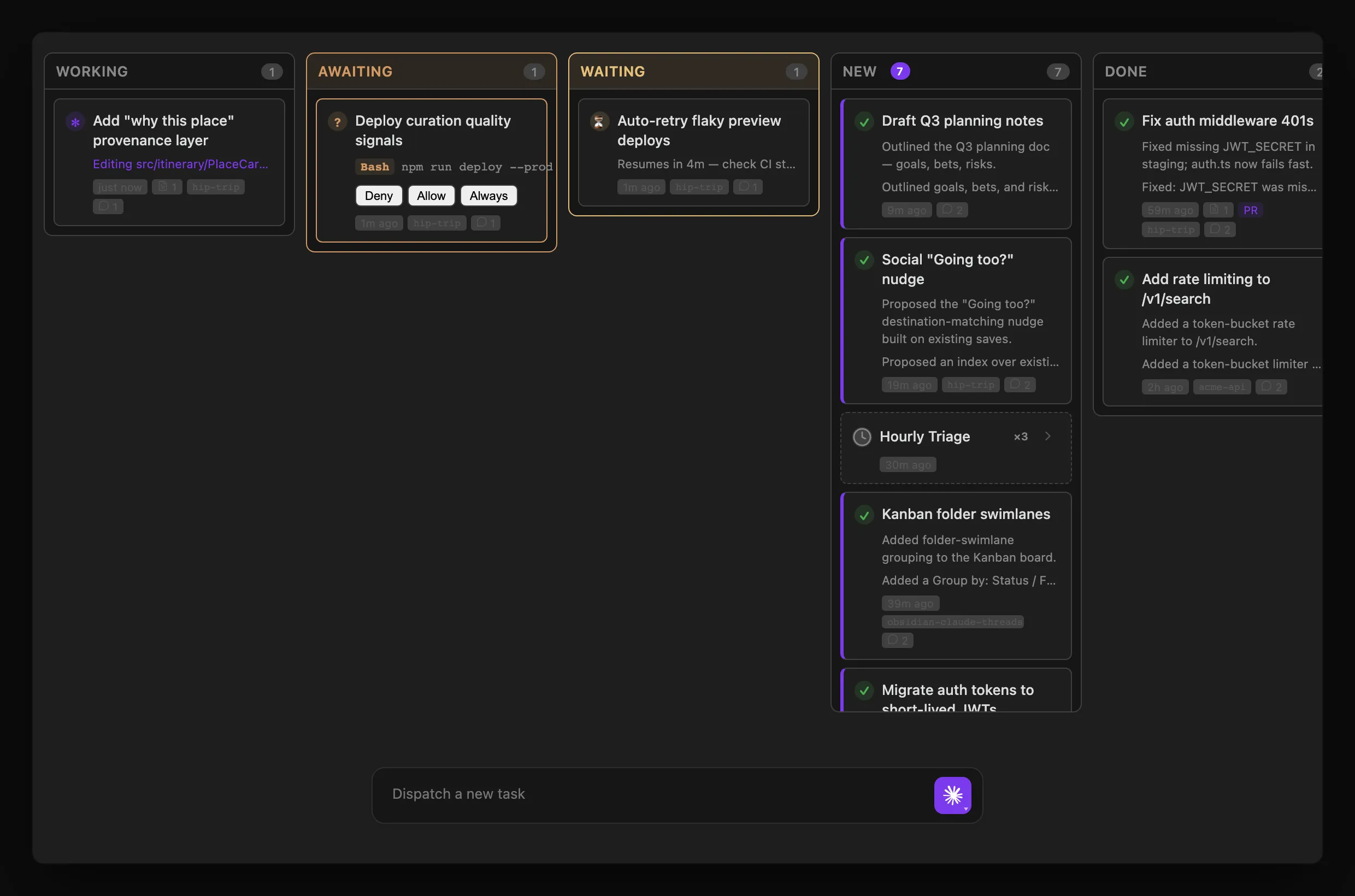
Select the Agent Board button in the Agents List toolbar (or run Open Agent Board from the command palette) to switch from the default list view to a kanban layout. Each thread is a card, bucketed into a column for its agent state:
| Column | Meaning |
|---|---|
| Working | Actively processing a turn — also covers a thread whose own turn has ended but a background subagent (Agent(..., run_in_background: true)) or Workflow task it spawned hasn’t reported back yet, so it doesn’t get miscategorized as New/Done/Ready while still doing work server-side |
| Awaiting | Waiting on a permission prompt or agent question |
| Waiting | A ScheduleWakeup is pending — shows a live countdown, e.g. “Resumes in 4m — check CI status” |
| New | Unreviewed — completed since you last looked |
| Done | Finished and reviewed |
| Failed | Ended in an error state |
| Ready | Empty — no active work |
Columns are sorted most-recently-active first. The board has its own floating dispatch panel at the bottom — type a task and press Enter to launch a new thread without leaving the board. List view is the default; the preference persists across reloads.
Dispatching from the board
The kickoff button displays the selected Claude or Codex harness. Press Enter or click it to dispatch; right-click, press and hold, or use its keyboard menu to change the selection without sending. Selection is local to the mounted Agent Board, and Settings supplies only the initial default. See Agents List → Dispatch box for all selector gestures and harness behavior.
The accessible Project selector chooses the new thread’s Project and initial working directory. Unassigned uses the global default cwd. The selection survives harness, model, goal, loop, attachment, and image options; Projects documents cwd resolution and reassignment behavior.
The panel accepts the same /model, /goal, /loop, and /design prefixes as the Agents List. /design <brief> creates a new native design-artifact thread, opens it in Chat, and launches the ArtifactView preview. Bare /design shows a usage notice and creates no thread. Image and text attachments are not accepted for design dispatch; Threads preserves the draft so you can remove them and try again. See Design artifacts in Geode for details.
When a thread owns Claude or Codex child agents, its card also shows a compact native-agent count. Like the Agents List, it is green while any child is starting, working, or waiting, and faint once every run is terminal or unavailable. Open the thread or Agents List to inspect the nested team; see Native Agent Workspace for details.
Task list on cards
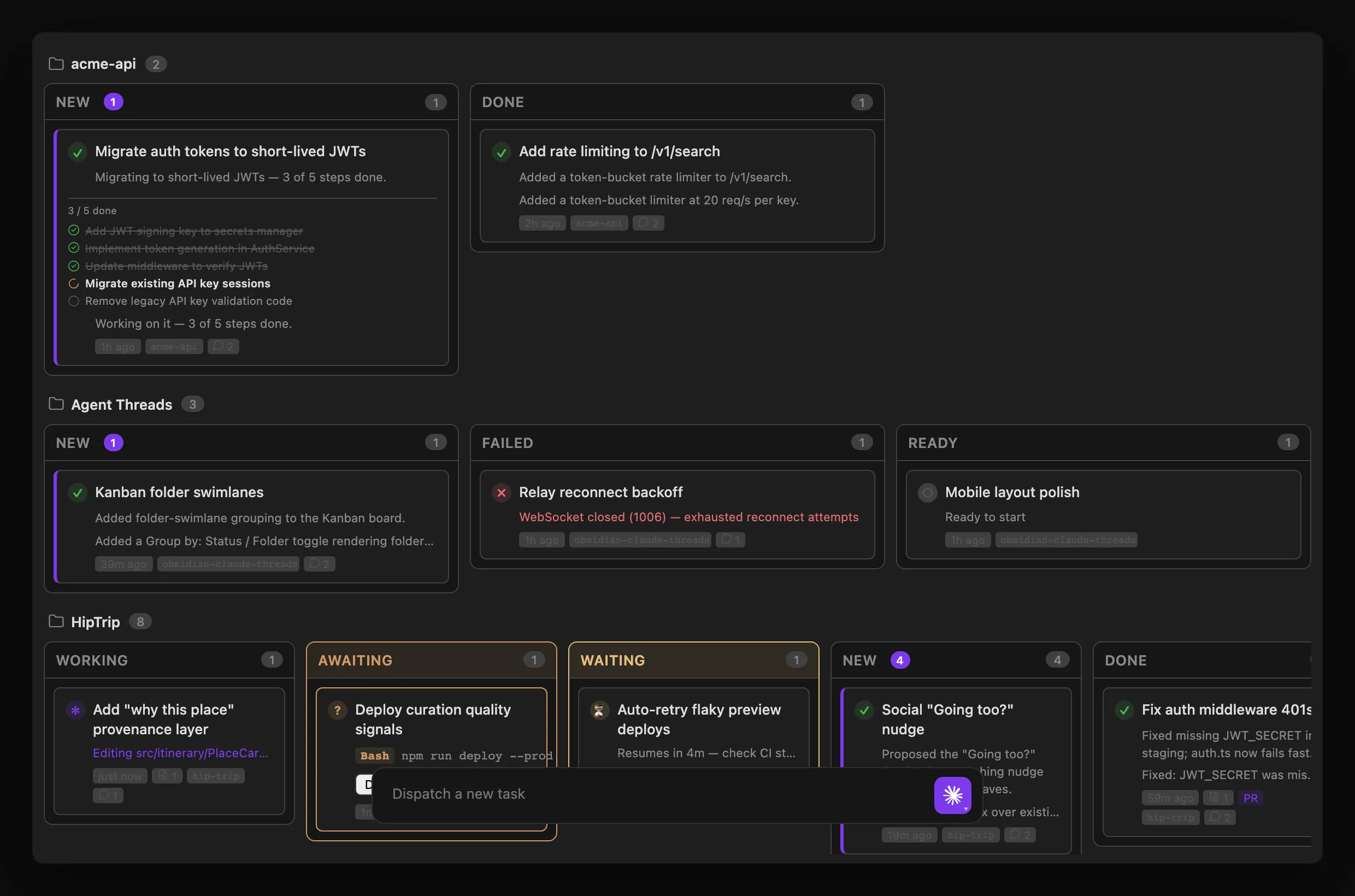
When a thread has an active Claude TodoWrite / TaskCreate checklist or Codex update_plan checklist, its Agent Board card shows a compact task list: up to 5 items with status icons (✔ completed, ■ in-progress, ○ pending), a “X / Y done” progress line, and “+N more” when there are additional tasks. The list updates live as the agent ticks items off — useful for seeing exactly how far along a long-running task is without opening the conversation.
Group by folder or project
The group-by toggle in the board header (the icon next to search) cycles through three layouts: status columns (the default), folder swimlanes, and project columns. Each click advances to the next; the choice persists across reloads.
Folder swimlanes
One horizontal lane per app/project, so you can see every conversation for a given codebase together. An explicitly assigned Project always wins. For an unassigned thread, the board resolves its origin repository or effective working directory; when that root matches a configured Project’s effective root, the thread joins that Project’s lane. Otherwise it falls back to the git repository name or working-directory label, and an Unassigned lane catches threads with no folder. Inside each lane the cards are still grouped into the same status columns (empty columns are hidden to keep lanes compact). Lanes are ordered alphabetically (case-insensitive), with Unassigned pinned last.
Project columns
One vertical column per app/project (same project resolution as folder swimlanes — alphabetical, Unassigned last), with each column’s cards grouped under status section headers: Working, Waiting, New, Reviewed, Failed, Ready. This mirrors the Agents List sidebar’s grouping — awaiting-permission threads fold into Working, and empty sections are omitted. Each column reads top-to-bottom like a compact per-project dashboard, which keeps a busy single-project board scannable without horizontal scrolling.
Stacked scheduled-job threads
Repeat runs of the same scheduled task pile up fast — an hourly triage job produces ~24 cards a day, crowding out the threads you started yourself. In the quiet columns only (New, Done/Reviewed, Ready — a run that’s Working, Awaiting, Waiting, or Failed always stays its own card), runs that share a scheduled job collapse into a single dashed-border rollup card: job name, a “×N” run count, and the latest run’s time. Click the card to expand it into the individual run cards, indented beneath. This applies in status-column, folder-swimlane, and project-column mode.
Enabled by default — disable via Settings → Features → Agent Board → Stack scheduled job threads if you’d rather see every run as its own card, see Settings Reference → Features.
Archive from a card (right-click)
Cards carry the same right-click Archive thread action as Agents List rows, including the bulk archive for stacked scheduled-job runs — right-click the stack card’s header row for Archive these N runs, plus Archive all M runs of this job when that job has runs the card isn’t showing. Desktop only. See Agents List → Archive from the list for the confirmation rules and full behavior.
Auto-collapse side panels
Set Settings → Features → Agent Board → Auto-collapse side panel to Left sidebar, Right sidebar, or Both sidebars to automatically collapse Obsidian’s sidebar panel(s) when the Agent Board tab opens, giving the board more horizontal room. Only the panel(s) the Agent Board collapsed are restored when you close the tab, so it won’t fight a panel you collapsed or expanded manually. Defaults to None (opt-in) — see Settings Reference → Features.