Every Agent Threads session ships with a built-in, host-neutral claude_threads MCP server (vault access, thread control, worktrees, and more) that needs no configuration. Codex receives the same canonical tool definitions through its dynamic-tool protocol. The former obsidian server and obsidian_* tool names remain callable as deprecated compatibility aliases until the next major release, but new prompts, permissions, and automation should use claude_threads and the canonical names in the Agent Tools Reference.
Beyond that built-in surface, you can wire in external MCP servers — Compass, Helio, a company-internal tools server, or anything else that speaks the Model Context Protocol — and newly initialized sessions pick them up automatically, on both the Claude and Codex harnesses.
Those external servers are stored in this plugin’s own data.json, not in any Claude Code config file. The Settings → MCP tab lets you list, add, edit, and remove them from inside the host app, so the common cases never require hand-editing JSON.
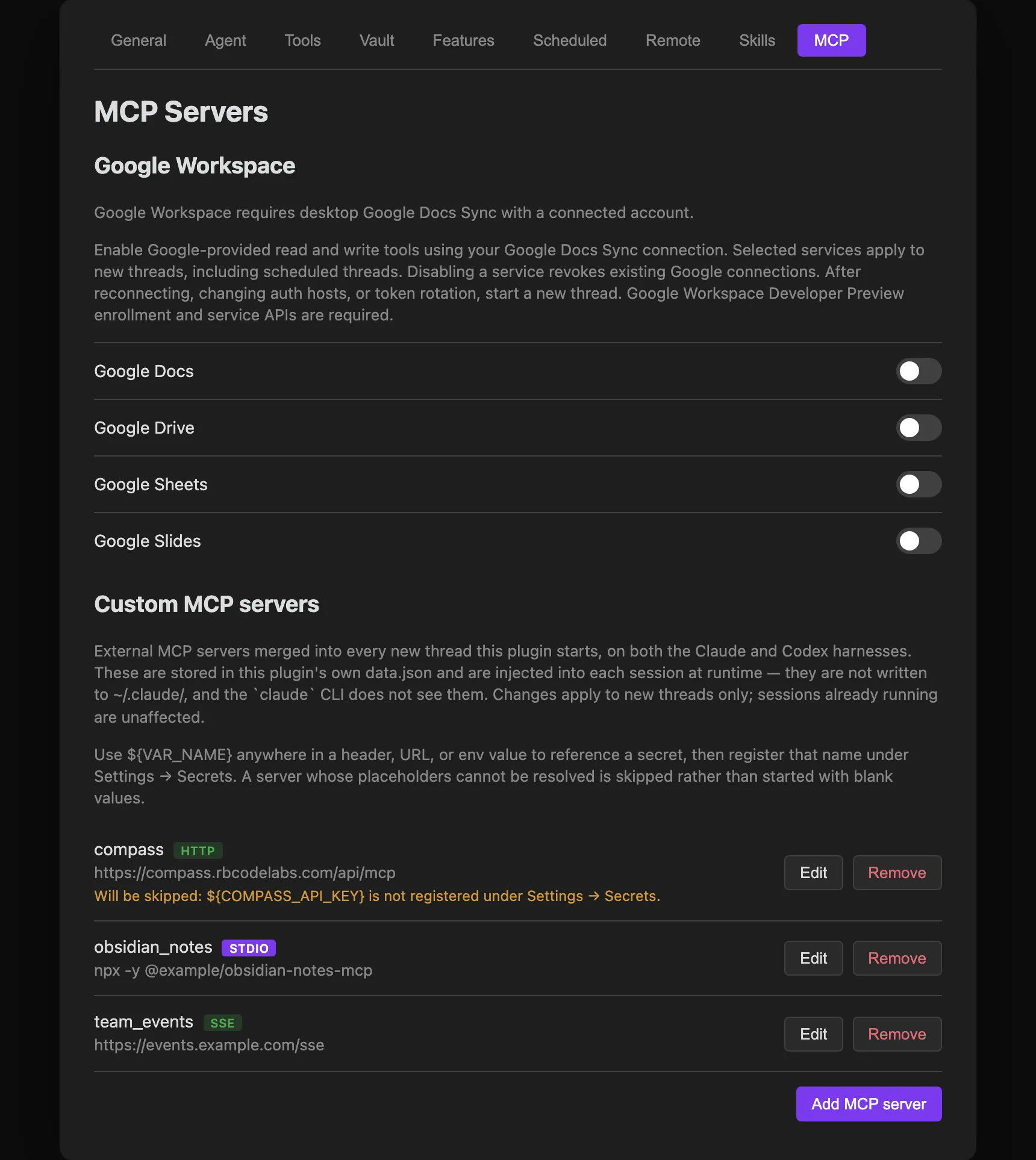
Opening the tab
Open Settings → Agent Threads and select the MCP tab. On mobile, the settings screen is reduced to pairing and reload controls — MCP servers are managed from desktop only.
This is per-vault plugin data, not a Claude Code config file
The MCP tab edits this plugin’s own data.json for the current vault — not ~/.claude/settings.json, and not any other Claude Code config. That means:
- Servers you add here are scoped to this vault; they don’t show up in other vaults running Agent Threads, and they aren’t shared with the
claudeCLI run outside the plugin. - The
claudeCLI’s own~/.claude/settings.jsonis never read or written by this tab — a server added there doesn’t appear here, and vice versa. - Each configured server is injected into a session’s tool set at runtime, when a session is initialized, on whichever harness (Claude or Codex) that thread uses.
Changes take effect for newly initialized sessions. A registration does not hot-load a server into the session that made the request; an already-running session keeps the MCP servers it started with. New threads receive the new configuration, as does an existing thread if its session is later initialized again through the normal lifecycle.
Google Workspace
Available in Agent Threads v0.35.0 as an opt-in beta, with Google Docs Sync v0.7.1 or later. Live four-service validation across both harnesses remains pending; test with non-sensitive content before using it for important work.
The Google Workspace section connects Google’s hosted MCP servers using the Google account already connected in the Google Docs Sync plugin in the same vault. Enable Google Docs, Google Drive, Google Sheets, and Google Slides individually. All four start disabled.
Each enabled service exposes Google’s available tools, including read and write operations, to new Claude and Codex threads. The existing harness permission mode controls tool approvals. Scheduled threads use the same selected services. You do not need to enter server URLs, copy access tokens, or maintain Google tool schemas.
Connect your account
- Install and enable Google Docs Sync v0.7.1 or later, which includes guarded connection-refresh support, in the same desktop host and vault. Older releases show an update message in the Google Workspace section. Connect the intended Google account in that plugin’s settings.
- If your organization hosts its own auth service, use Google Docs Sync’s Auth proxy URL setting. Disconnect the old account before changing hosts, then reconnect. Use current versions of the plugin and auth service with Geode-aware callbacks and the scopes below.
- Enable the desired services under Settings → Agent Threads → MCP → Google Workspace, then start a new thread.
Google credentials are refreshed through the existing connection as requests are made. If the connection is unavailable, the settings section provides connection guidance. After switching accounts or auth hosts, start a new thread so an existing conversation does not silently gain access to a different account. The thread’s account binding is retained across app restarts. Normal access-token refresh is automatic. If Google rotates the refresh token, start a new thread. Disabling a service revokes existing Google connections; re-enabling it requires a new thread.
Google Cloud prerequisites
Google’s Workspace MCP servers are currently in Developer Preview. Confirm both your Workspace developer-account approval and registration of the specific Google Cloud project backing the OAuth client. Then enable the ordinary API and MCP API for each service:
| Service | APIs to enable | OAuth scopes requested by the auth service |
|---|---|---|
| Drive | drive.googleapis.com, drivemcp.googleapis.com | drive.readonly, drive.file |
| Docs | docs.googleapis.com, docsmcp.googleapis.com | Drive scopes plus documents.readonly, documents |
| Sheets | sheets.googleapis.com, sheetsmcp.googleapis.com | Drive scopes plus spreadsheets.readonly, spreadsheets |
| Slides | slides.googleapis.com, slidesmcp.googleapis.com | Drive scopes plus presentations.readonly, presentations |
Scope names in the table have the prefix https://www.googleapis.com/auth/.
Include the explicit read-only scopes even when requesting their write-capable
counterparts. After the auth service adds scopes, reconnect the account to grant
them; refreshing an old token does not add permissions.
See Google’s setup guide and Developer Preview Program. Immediately after project registration, preview errors may persist or alternate with successful calls while Google’s checks propagate. Once registration and API enablement are confirmed, retry over several minutes before changing configuration. Successful initialization or tool discovery alone does not prove tool execution is authorized; test a read against a non-sensitive file in each selected service.
OAuth-gated servers
Available in Agent Threads v0.36.0 or later. A remote MCP server that requires
its own OAuth 2.1 + PKCE sign-in — Vercel’s, for example — registers with
type: "oauth" instead of "http". The plugin brokers the entire flow itself:
discovery, Dynamic Client Registration, consent, token custody, refresh, and
revocation. Neither Claude nor Codex needs any OAuth-specific code — both
harnesses see the server as a plain authenticated HTTP endpoint behind a local,
per-server proxy that injects the current access token on every request.
You can connect one two ways, and both run the same flow with the same validation:
- Settings → Agent Threads → MCP → Add MCP server → OAuth. Enter a name and the server’s URL; everything else is optional.
- Ask an agent to call
mcp_register_serverwithtype: "oauth".
Unlike the stdio/HTTP/SSE transports above, connecting an oauth server is
asynchronous and interactive, not a one-shot confirm-and-save:
- You submit the form, or an agent calls
mcp_register_serverwithtype: "oauth"and the upstream server’s URL. - The plugin discovers the authorization server and registers a client (unless
you supplied a known
clientId). - Your OAuth consent screen opens in the host’s Web Viewer. You have up to 5 minutes to complete sign-in.
- On success, the plugin exchanges the authorization code for tokens, starts the local proxy, and saves the server — newly initialized threads on both harnesses can use it from then on.
Denying consent, closing the tab, or letting the window lapse leaves no partial state behind: nothing is saved, and no proxy keeps running. The same interactive-host requirement as other registrations applies — a scheduled thread gets an unavailable result instead of a stalled consent dialog.
Optional fields narrow what the registration does:
| Field | Meaning |
|---|---|
scopes | Space-separated OAuth scopes to request. Omit to use the authorization server’s default. |
tools.allow | Expose only these tool names through the proxy. Mutually exclusive with tools.deny. |
tools.deny | Hide these tool names from discovery and block calling them (a clean MCP-level error, not a silent failure). Mutually exclusive with tools.allow. |
clientId | Skip Dynamic Client Registration with a known public client ID. |
authorizationServerUrl | Skip protected-resource discovery by pointing directly at the authorization server. |
For example, connecting Vercel’s MCP server while blocking its spend-money tools:
{
  "name": "vercel",
  "type": "oauth",
  "url": "https://mcp.vercel.com/",
  "scopes": "openid profile email",
  "tools": { "deny": ["buy_pro", "buy_credits", "buy_addon", "buy_domain"] }
}
Access and refresh tokens live only in the OS keychain — never in data.json,
never returned to the calling thread. The token refreshes proactively ahead of
expiry and, as a fallback, transparently on the next request if the upstream
briefly rejects it. If the authorization server later revokes access or a
refresh attempt fails, the server’s status changes to “Needs re-authorization”
and the next thread request to it fails cleanly, the same as any other
unreachable endpoint would.
Managing a connected OAuth server
Settings → Agent Threads → MCP → OAuth MCP servers lists every connected server with a live status — connected with an expiry countdown, expiring soon, needs re-authorization, or not configured — and a Disconnect button, which revokes the tokens with the authorization server, clears the keychain, and stops the proxy.
This section itself has no “Add” button — you connect a server from the Add MCP server button at the bottom of the MCP tab, choosing the OAuth type. The option appears only when adding, never when editing an existing server: a connected server’s tokens live in the keychain, so changing its configuration means Disconnect followed by a fresh consent round-trip rather than an in-place edit.
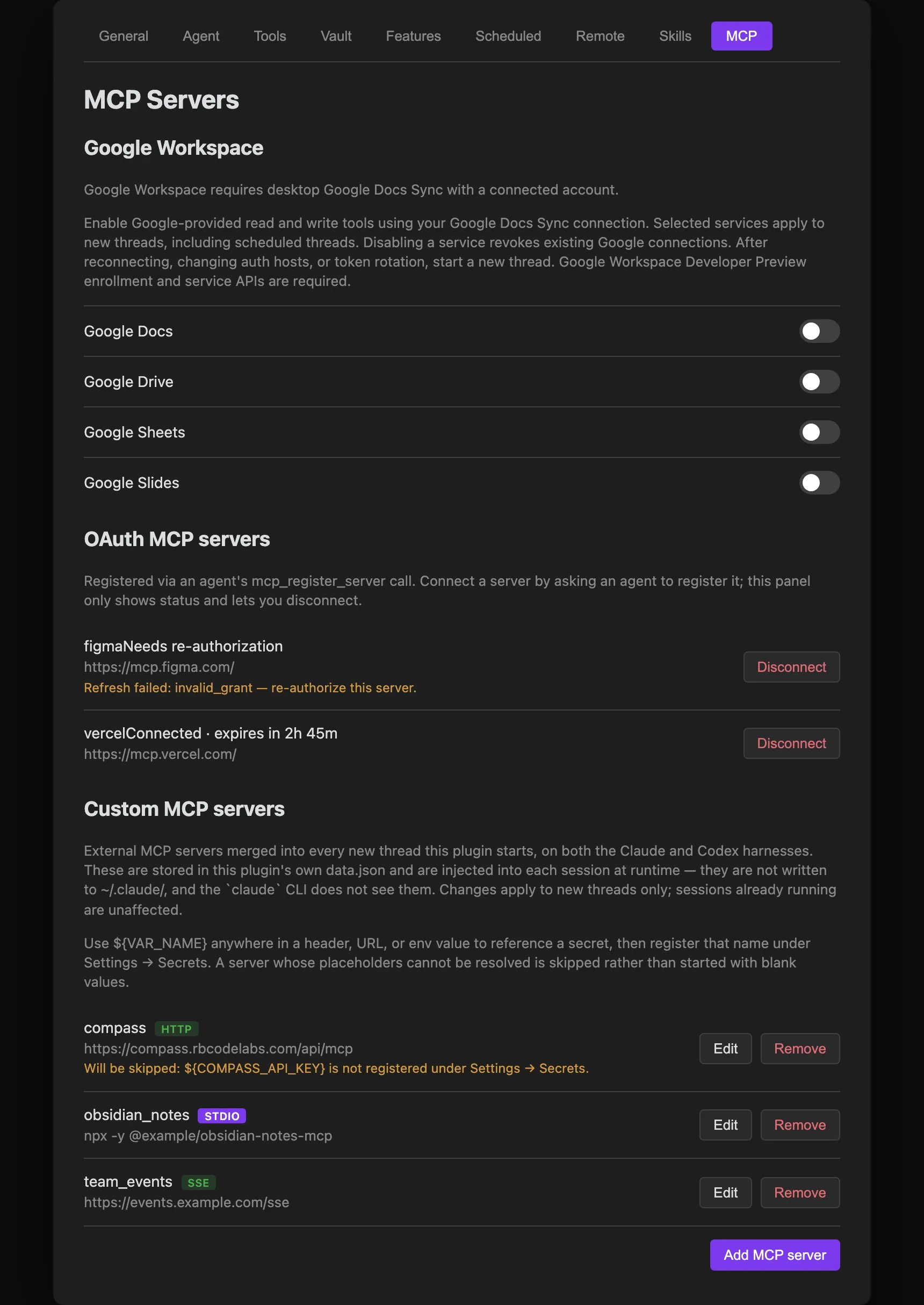
The external server list
Each configured server is shown as a row with:
- Its name (the key under
mcpServersin the stored config). - A type badge —
stdio,http, orsse. - A one-line summary — the command line for
stdioservers, the URL forhttp/sseservers. - Edit and Remove actions.
- A warning line, if the server references an environment variable or secret that isn’t currently resolvable — see Placeholders and secrets below.
If no servers are configured yet, the list shows an empty state instead of rows.
Adding or editing a server
Add MCP server (or Edit on an existing row) opens a form with a type toggle between the two transports Claude Code can launch from file config:
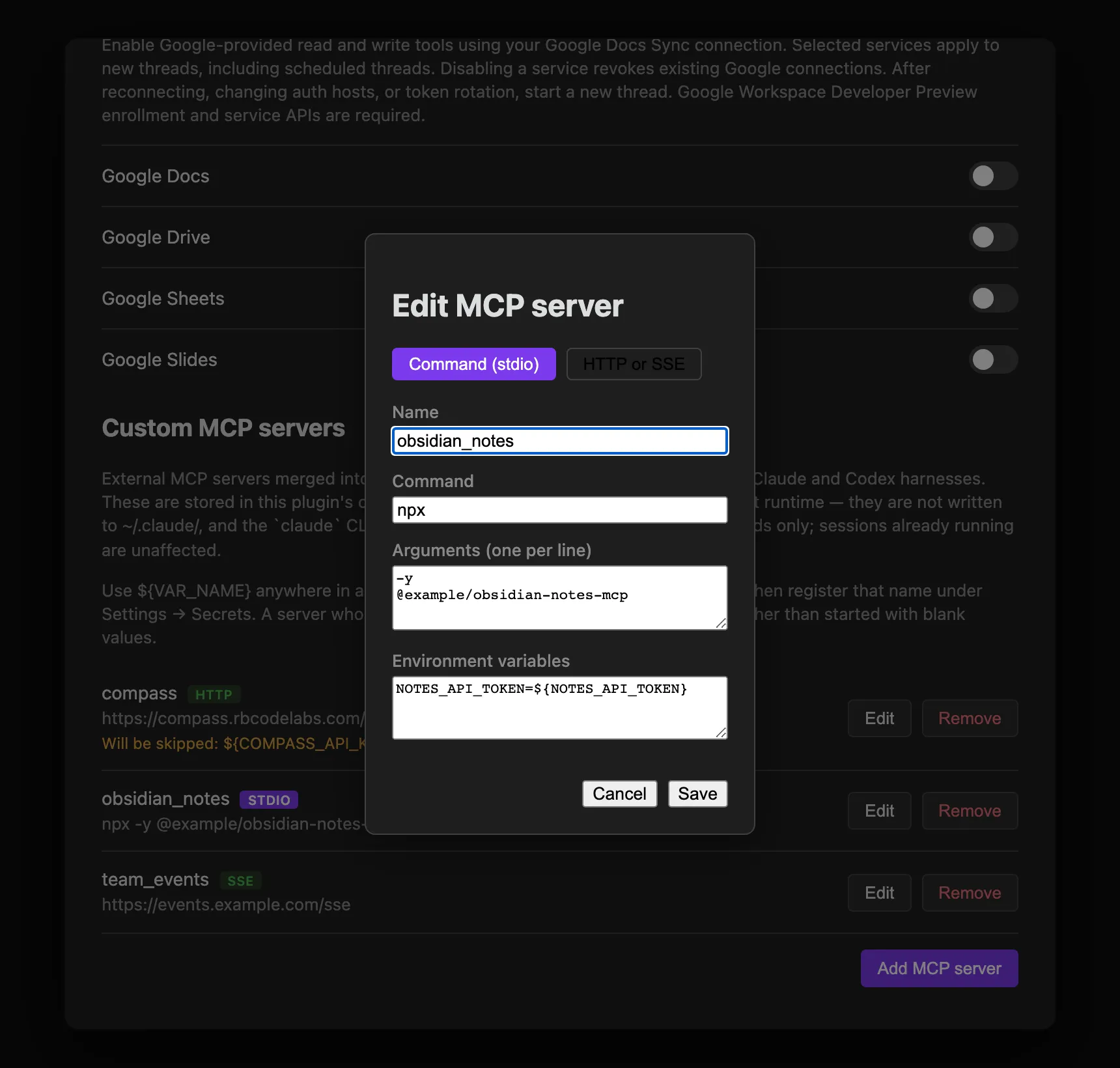
| Type | Fields |
|---|---|
| Command (stdio) | Name, Command, Arguments (one per line), Environment variables (KEY=VALUE per line) |
| HTTP or SSE | Name, URL, transport (http or sse), Headers (KEY=VALUE per line) |
Names may contain only letters, numbers, hyphens, and underscores, and must be unique. The form validates required fields (a command for stdio, a URL for HTTP/SSE) before saving, and renaming an entry moves it to the new key rather than leaving a duplicate behind.
Registering a server from a thread
An agent in an interactive desktop thread can call mcp_register_server to propose a new external server without opening Settings. For stdio, http, and sse, the tool accepts the same flat configuration shape that the MCP tab stores; oauth uses a different field set and a multi-step interactive flow, described in OAuth-gated servers above.
| Field | Applies to | Description |
|---|---|---|
name | All | Unique server name containing letters, numbers, hyphens, or underscores. Built-in and unsafe object-property names are reserved case-insensitively. |
type | All | stdio, http, sse, or oauth. |
command | stdio | Executable or command to start. Required for stdio. |
args | stdio | Optional array of command arguments. |
env | stdio | Optional object of environment-variable names and values. |
url | http, sse, oauth | HTTP(S) endpoint. Required for remote transports; embedded URL credentials are rejected. For oauth, this is the upstream MCP server’s root URL and must be https://. |
headers | http, sse | Optional object of HTTP header names and values. Not used for oauth — see scopes/tools in OAuth-gated servers. |
Registration is create-only. If the same name already has an identical configuration, retrying succeeds as an unchanged no-op. If the name belongs to a different configuration, the tool reports a conflict and changes nothing; use Settings → MCP when you intentionally need to edit, rename, or remove a server.
The result has success, status, and message fields. status is one of registered, unchanged, conflict, invalid, cancelled, unavailable, or failed; only registered and unchanged are successful. Those successful results also include requiredVariables, a sorted array of every ${VAR_NAME} referenced by the configuration. The names are returned unresolved and are not checked for availability until a session initializes. The response never repeats the submitted configuration, a resolved variable, or a credential value.
Before saving a new configuration, the host shows its own confirmation dialog even if the thread’s ordinary tool approvals are bypassed. This is a separate safety boundary because a stdio server will run its configured command automatically when a later session initializes. The dialog also makes clear that the registration is global to this vault’s plugin settings, not limited to the calling Project. Cancelling leaves settings unchanged.
The confirmation dialog is available only from an interactive desktop thread. Scheduled and other noninteractive sessions cannot approve a registration and receive an unavailable result instead; they cannot silently add an MCP server while running under dontAsk.
The tool does not launch a command or contact a remote endpoint while registering it. After the host confirms, it saves the unresolved configuration to data.json. The successful result means the save completed; it does not mean the external server is reachable.
Credentials in agent registrations
Never put an API key, token, password, cookie, or other secret directly in a tool call. Put a ${VAR_NAME} placeholder in the configuration, then call request_secret so the user can enter the value into the OS keychain without exposing it in the conversation.
The registration tool rejects a literal value when a command argument, URL query parameter, environment-variable name, or header name looks credential-related (for example, Authorization, API_TOKEN, password, or cookie). Placeholder forms such as ${NOTES_API_TOKEN}, Bearer ${NOTES_API_TOKEN}, and Basic ${NOTES_API_TOKEN} are accepted. This check is deliberately conservative, but it is a name-based safety check rather than a secret detector: arbitrary literals in fields that do not look credential-related are allowed and must contain only nonsecret configuration.
For example, an agent can propose this remote server configuration and then request NOTES_API_TOKEN separately:
{
  "name": "notes_api",
  "type": "http",
  "url": "https://notes.example.com/mcp",
  "headers": {
    "Authorization": "Bearer ${NOTES_API_TOKEN}"
  }
}
Placeholders and secrets
Environment-variable values and HTTP header values support ${VAR_NAME} placeholders. These are stored verbatim in data.json — the tab never resolves or reveals a secret — and are expanded only when a live thread starts, using the same resolution as Extra environment variables: process environment variables merged with keychain-stored secrets. This keeps real tokens out of data.json while still letting each thread authenticate.
If a placeholder can’t be resolved — the variable is unset and no matching secret is registered — the server is skipped entirely for that session, rather than starting with a blank credential. You’ll see this in two places:
- A row in the Settings → MCP list shows “Will be skipped:
${VAR_NAME}is not registered under Settings → Secrets.” - The first time a thread hits this during a session, a one-time notice banner reports it (deduplicated per warning message, so it won’t repeat every turn).
Earlier versions of the plugin expanded an unresolved placeholder to an empty string and injected it anyway — which meant a server could silently authenticate with a blank token and fail in confusing ways. Register the missing variable or secret under Settings → Claude → Extra environment variables / Secret environment variables to clear the warning and have the server load normally.
Related
- Permission Modes and Plan Mode → MCP Elicitation — how a thread prompts you for a credential or form an MCP server asks for mid-session.
- Settings Reference — every settings tab at a glance, including this one.